
Google Ads
Connect
Section titled “Connect”- In Settings → Integrations, select Connect next to Google Ads and sign in with the Google account that has access to your ads.
- Pick the Google Ads account your campaigns run from. If you manage it through a manager account, pick the client account.
Pingado reads spend per campaign, and uploads conversions to the conversion actions you choose.
Choose a conversion action for each conversion
Section titled “Choose a conversion action for each conversion”Google Ads counts conversions in conversion actions. In Events Mapping, select the Google Ads cell of each conversion and pick an existing action, or let Pingado create one, such as Pingado - Purchase.
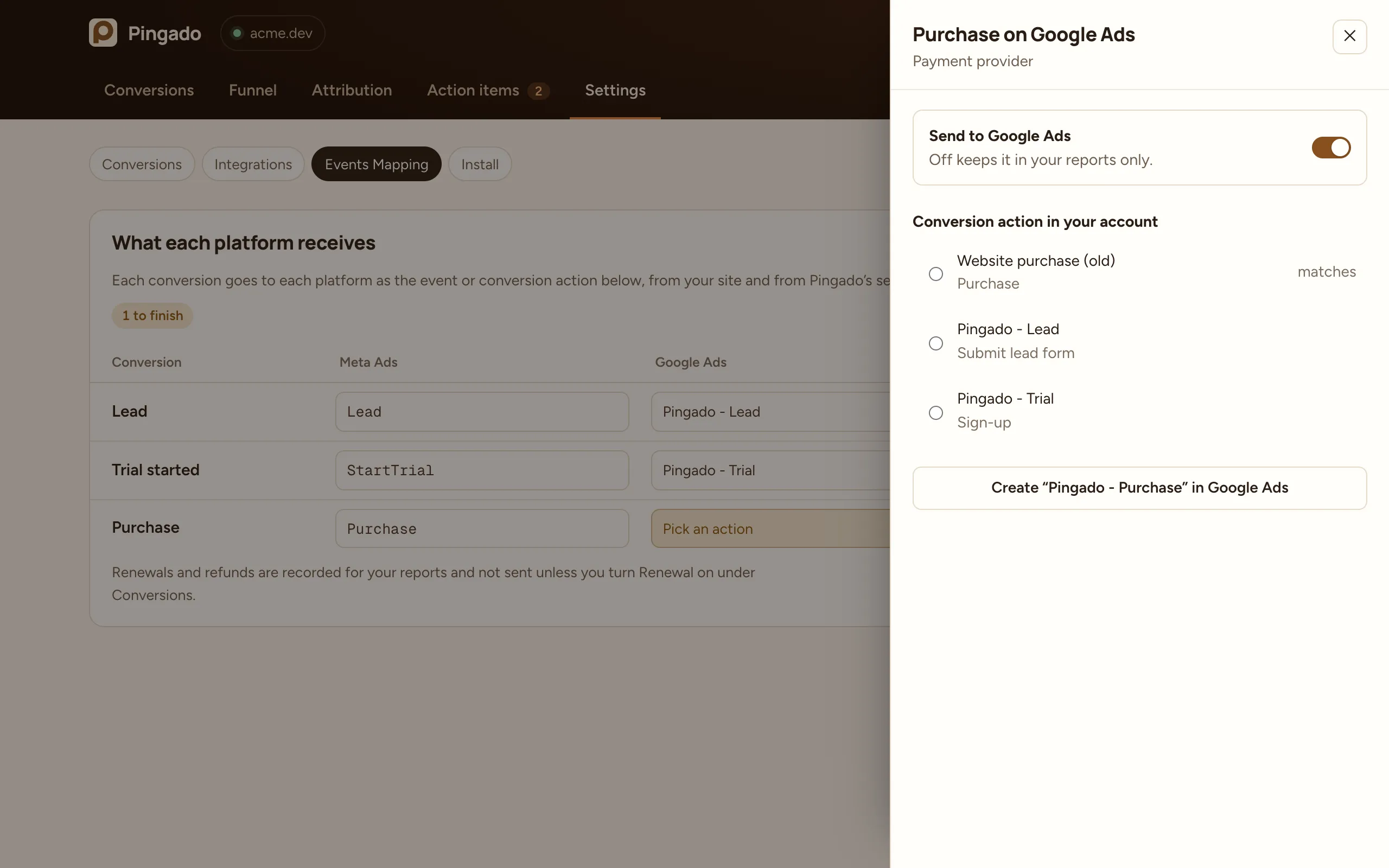
Pingado shows the action’s conversion ID and label. Use them to check the action in Google Ads, not to paste anywhere.
What Google receives
Section titled “What Google receives”Each conversion goes to the same conversion action twice:
- From the browser: Pingado loads the Google tag and fires the conversion with your conversion ID and label, and the event ID as the transaction ID.
- From the server: Pingado uploads the conversion through the Google Ads API with the click ID (
gclid,gbraidorwbraid), the hashed email, value and currency, and the same event ID as the order ID.
Google counts the pair once because both carry the same order ID in the same conversion action.
Uploaded conversions can take several hours to appear in Google Ads.